
To install mods in The Witcher 3 Remastered on Nintendo Switch 2, open Mods from the main menu, link your CD PROJEKT RED account to mod.io, and subscribe to a compatible mod. Let it download, restart the game, and check that it is enabled under Installed.
You do not need to copy files to a memory card or install a desktop mod manager. This guide uses the game’s built-in system. A mod is community-made content that changes something in the game, such as Geralt’s appearance.
Checked October 27, 2026. CD Projekt Red explicitly lists Switch 2 in its cross-platform mod support documentation. Remastered is different from running the original Nintendo Switch release through backward compatibility.
What you need to get started
- The Witcher 3: Wild Hunt — Remastered for Nintendo Switch 2, with available updates installed.
- An internet connection to browse and download content.
- A CD PROJEKT RED account linked to mod.io. You can follow the game’s sign-in instructions using a phone.
- A separate save from before you used mods. Our practical recommendation is to make a manual save and leave that slot untouched while testing.
Choose one mod with an obvious effect for your first attempt. Installing several at once makes it harder to work out which change caused a problem.
How to install Witcher 3 Remastered mods on Switch 2
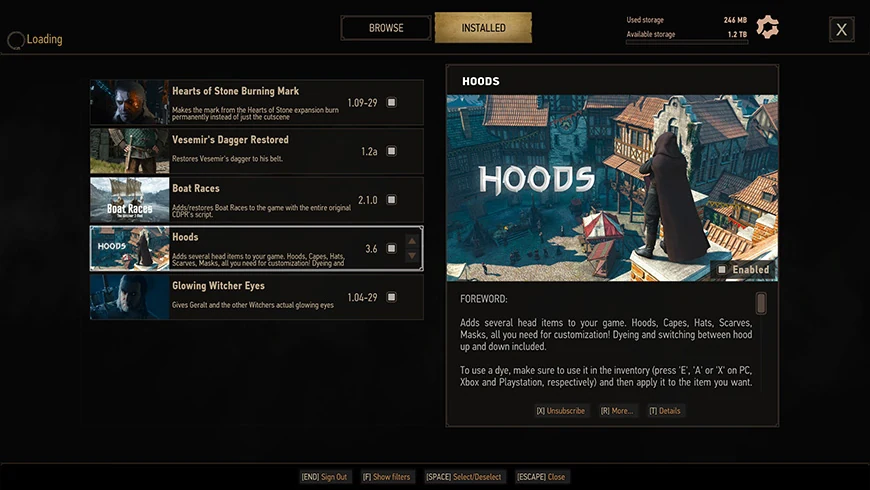
About the screenshots: these images come from CD Projekt Red’s official tutorial and illustrate the general interface. They were not captured by ArcadeBot on Switch 2, and their button prompts may belong to another platform. Follow the prompts on your own screen.
1. Update your game
Highlight The Witcher 3 on the HOME Menu without launching it. Press + or −, then choose Software Update → Via the Internet. Wait for the update to finish. See Nintendo’s software update instructions if needed.
The Switch 2 patch 5.01 notes, published October 19, include an improvement to mod cache handling. Always install the update offered by your console, including any later version.
2. Open Mods on the main menu
Launch Remastered and select Mods before loading a save. This opens the built-in system; there is no console folder you need to locate or create.
3. Sign in to your CD PROJEKT RED account
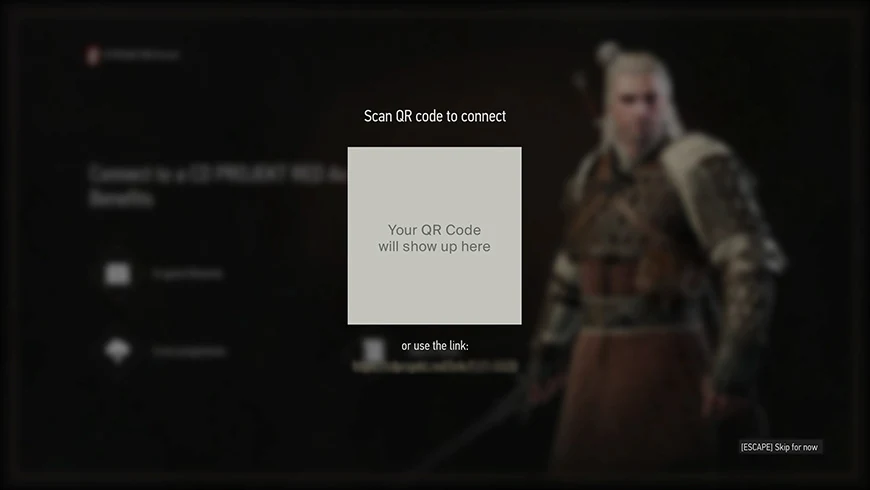
Use the link or scan the QR code shown by the game with your phone’s camera. Sign in to your account, or follow the service’s registration option if you need one. Return to the console when the sign-in flow is complete.
4. Link your account to mod.io
Read the connection notices and permissions, then follow the service’s instructions to complete the link and continue to the library.
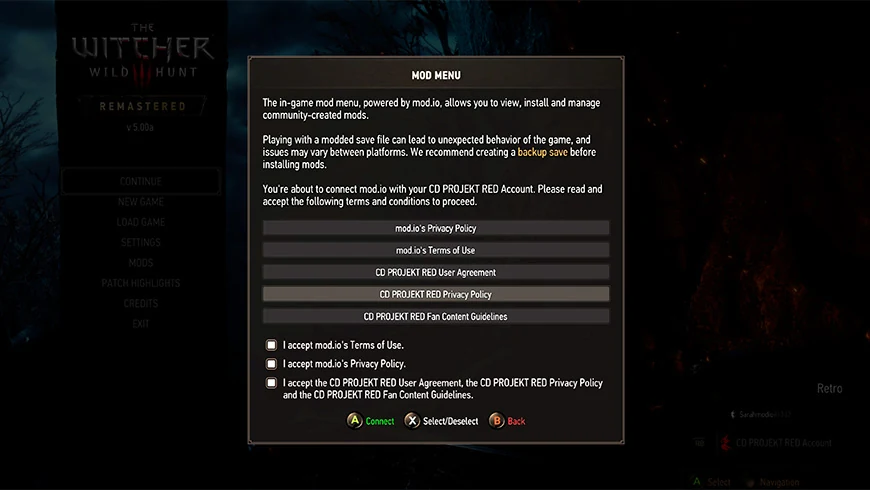
Already have a mod.io profile? Make sure you are signed in to the correct one first. The mod.io account-linking guide points to this Witcher 3 connection page. You can check the result under linked accounts. Using different profiles on your phone and in the game can leave you looking for subscriptions in the wrong account.
5. Pick a mod available for Nintendo Switch 2
Browse the library and open a mod’s page. On your phone or computer, start with the catalog filtered for Nintendo Switch 2. Check that the platform filter remains selected.
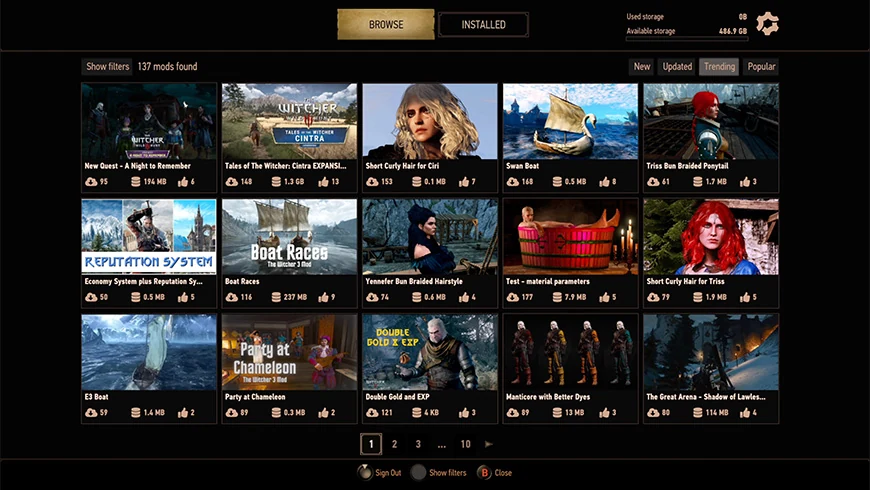
Read what the mod changes, what it requires, and how to check its effect. Look for dependencies: those are other mods or content the creator says it needs. Appearing in a PC list or a tutorial screenshot does not establish Switch 2 availability.
6. Subscribe and let the download finish
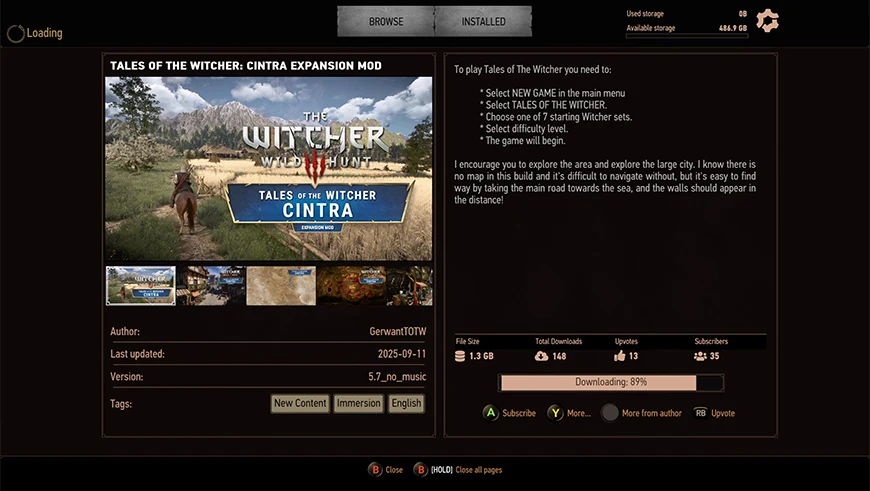
Select Subscribe on the mod’s page. Wait until the transfer is complete. A download that has started is not yet a finished installation.
7. Restart, then check Installed
Fully close the game and launch it again. Return to Mods → Installed and check that your mod is listed with its checkbox selected.
8. Test the change before continuing your playthrough
Follow the creator’s description to find the result. A hairstyle mod might require visiting a barber; another mod might require a new game. Seeing no immediate change when Geralt loads into the world does not necessarily mean installation failed.
Test briefly and use a different save slot from the untouched one you kept earlier. Add another mod after you understand what the first one does.
Direct links to find and download mods
- The Witcher 3 mod catalog for Switch 2: start here to choose content for your platform.
- New Hairstyles and Beards For Geralt, by ArdCarraigh: adds hair and beard options. It appeared in the Switch 2 catalog when we checked. Review its current availability and instructions before subscribing.
- CD Projekt Red’s visual installation tutorial: use the mod.io section for the built-in method.
Download the mod through the in-game manager on Switch 2. These links open the catalog or the creator’s page. Saving a ZIP file to your phone does not install it on the console. You also do not need REDkit; that tool is for creating mods.
How to disable a mod or stop using it
Open the mod menu and disable the installed mod or unsubscribe from it. CD Projekt Red recommends testing without mods when investigating a problem. You may need a save from before installation because some changes can remain in a save after a mod is disabled.
That is why we recommend keeping an untouched save. Disabling content and restoring a playthrough without its changes are different tasks.
What to do when a mod is missing or not working
There is no Mods option
Check which edition you launched and look for updates. This guide covers Remastered on Switch 2. If the option is still missing, contact CD Projekt Red support with the edition, region, and installed version.
The mod is on the website but not on my console
Check the Switch 2 filter and your account again. A PC download is not a replacement for a console release. A link cannot make a mod compatible if the creator does not provide a version for your platform.
The game has problems after installation
Disable mods to see whether the problem changes, then try an earlier save. The developer advises against adding mods that change quest structure midway through a playthrough. Use the creator’s page to report a problem, following CD Projekt Red’s mod troubleshooting guidance.
I want to move my save to another platform
Cross-progression requires the same compatible mod set on both platforms. Missing mods can prevent a save from loading correctly. Saves created with mods have a mod.io icon; keeping an earlier save gives you a route back to an unmodded playthrough.
More Witcher guides on ArcadeBot
Explore the card game in our Gwent guide, or explore the source material with our Witcher books reading guide.
This independent editorial guide uses official documentation and screenshots. It is not approved or endorsed by CD PROJEKT RED. Screenshots illustrate the system and are credited to their owner.